
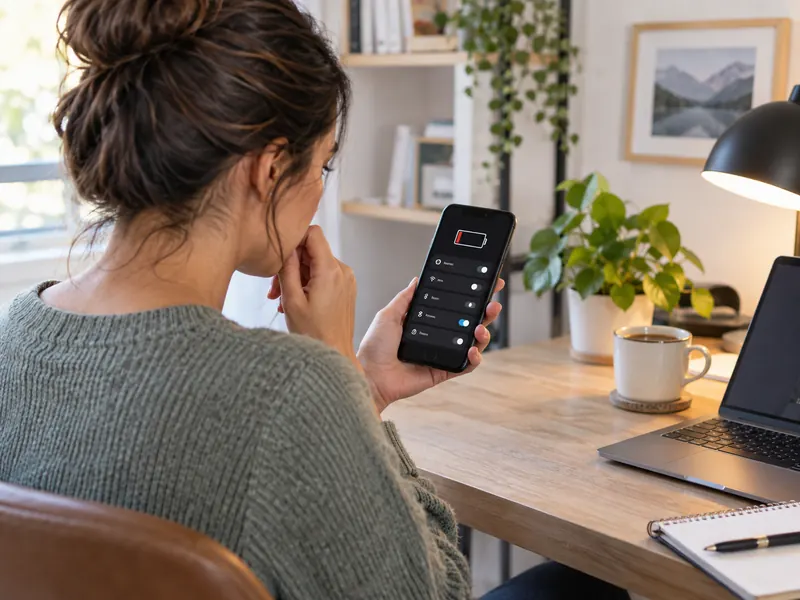
Battery life depends on far more than battery health. Display brightness, background activity, signal strength, app behavior, and how often the phone wakes can all change how long a charge lasts.
Before turning off every feature, open your phone’s Battery screen and identify which apps and activities are actually using power. Then adjust the settings that matter to your usage.
1. Screen brightness set higher than necessary
The display is often one of the largest power users during active use. High brightness outdoors is useful, but leaving it near maximum indoors can shorten battery life.
Try automatic brightness or lower the level manually to a comfortable setting.
2. A long screen timeout
If the screen stays on for several minutes after every interaction, small periods of idle time add up.
Set Auto-Lock or screen timeout to a reasonable interval that does not interfere with your normal use.
3. Always-on display features
Always-on displays are designed to be efficient, but they still use some energy. If battery life matters more than glanceable information, test turning the feature off for a few days.
The actual impact varies by phone, display technology, and usage.
4. Unrestricted background app activity
Some apps refresh feeds, upload data, or maintain background services even when you are not actively using them.
Review battery usage by app and restrict background activity for apps that do not need immediate updates.
5. Frequent location access
Navigation, fitness, weather, delivery, and social apps may request location. Continuous precise location can consume more power than occasional access.
Set permission to “while using” when that is enough and remove location access from apps that do not need it.
6. Weak cellular signal
A phone can use more power trying to maintain a connection in areas with poor signal. This is especially noticeable in basements, rural areas, or buildings with difficult coverage.
Use reliable Wi-Fi when appropriate or airplane mode in places where you intentionally do not need connectivity.
7. High-refresh-rate or maximum-performance modes
Some phones offer 90 Hz, 120 Hz, or higher display refresh rates and performance modes. They can make motion feel smoother but may increase power use.
Adaptive settings can provide a balance by reducing refresh rate or performance when full speed is unnecessary.
8. Excessive push notifications
Every notification can wake the display, trigger vibration, and prompt you to open the phone. A busy group chat or promotional app can create hundreds of small wake-ups.
Disable low-value notifications and keep alerts that are important to you.
9. Automatic downloads and cloud syncing over mobile data
Photo backups, app updates, podcasts, and file syncing can use radio and processor time in the background.
Schedule large transfers for Wi-Fi or charging when the apps provide that option.
10. Battery-saving modes left unused
Both iPhone and Android devices provide power-saving features that reduce background activity and other nonessential work.
Use them when you need longer runtime, but remember that some apps may update less frequently while the mode is active.
Check Battery Health Too
Settings cannot restore capacity that has been lost through battery aging. If the phone shuts down unexpectedly, drains unusually fast after troubleshooting, or reports poor battery health, service or battery replacement may be appropriate.
Frequently Asked Questions
Does closing every app save battery?
Not necessarily. Modern operating systems manage suspended apps efficiently, and repeatedly force-closing and reopening apps can sometimes use more energy. Focus on apps that the Battery screen shows are unusually active.
Does dark mode save battery?
It can reduce display power on many OLED phones, especially at higher brightness, but the benefit depends on the screen and content.
Should I keep Low Power Mode on all the time?
You can if the trade-offs are acceptable, but some background updates and visual features may be reduced. Many people use it only when they need extra runtime.
Run a Controlled Battery Test
Instead of switching off ten settings at once, identify your phone’s battery-usage screen and look at which apps or activities used the most energy over a recent period. Menu names differ by device and operating-system version.
- First: note your usual screen time, signal conditions and battery percentage after a typical day.
- Next: make one reversible adjustment, such as reducing screen brightness or limiting an app’s unnecessary background activity.
- Then: compare similar days before deciding whether the change helped. Different usage patterns can overwhelm small improvements.
If battery life drops suddenly, check battery health information where available and consider software issues or battery aging. Do not disable essential communication, accessibility or safety functions to chase marginal savings.
Sources and Further Reading
- Apple Support — If the battery in your iPhone or iPad drains too quickly
- Apple Support — Save battery life with Power Modes on iPhone