
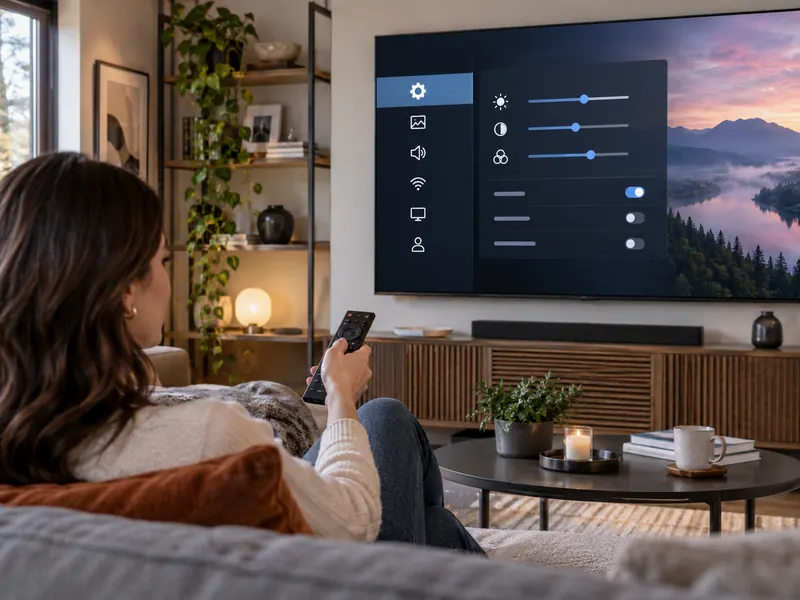
Smart TVs arrive with settings designed to look impressive on a showroom floor and work for many different homes. That does not mean the defaults are ideal for your room, your privacy preferences, or the way you watch movies, sports, and games.
The names vary by brand. Before changing advanced service-menu options, stick to normal user settings and note the original values so you can return to them.
1. Picture mode
“Vivid” or “Dynamic” modes often push brightness, contrast, sharpness, and color to stand out under bright store lighting. At home, a Cinema, Movie, Filmmaker, or calibrated mode may look more natural.
Choose a mode for your room and content rather than assuming the brightest image is the most accurate.
2. Motion smoothing
Motion interpolation can make sports look fluid, but it can also give movies an overly smooth “soap opera” appearance.
Try reducing or disabling motion smoothing for films, then create a separate preset for sports if you prefer it there.
3. Overscan and picture size
Some televisions still zoom or crop the incoming image in certain modes, which can hide pixels around the edges.
Look for “Just Scan,” “Screen Fit,” “1:1,” or a similar setting that displays the full source image when appropriate.
4. Energy-saving brightness controls
Ambient-light sensors and eco modes can reduce brightness to save power, but they may also make the picture unexpectedly dim.
Decide whether automatic brightness is helpful in your room and adjust it rather than disabling every energy feature by default.
5. Privacy and viewing-data options
Smart TVs may collect diagnostic, usage, voice, advertising, or viewing data depending on the brand and services enabled.
Open the privacy menu and review optional data collection, personalized advertising, voice services, and account permissions.
6. Automatic app and system updates
Updates can fix security and streaming compatibility issues, but an outdated television may remain unpatched if automatic updates are disabled.
Check the system update screen occasionally and remove apps you no longer use.
7. Audio output and dialogue settings
A television may default to internal speakers even after a soundbar is connected, or it may apply virtual surround processing that makes dialogue harder to understand.
Confirm the correct output, digital audio format, lip-sync setting, and dialogue enhancement options for your setup.
8. Game mode and low-latency settings
Game mode reduces image processing to lower input delay. It is useful for consoles and PCs but may change picture processing in ways you do not want for movies.
Many newer TVs switch automatically using HDMI features, but verify that the correct HDMI input and mode are configured.
Change One Setting at a Time
If you change five picture settings at once, it becomes difficult to know which one helped. Start with picture mode, brightness, motion, and privacy, then adjust only what you can evaluate.
Frequently Asked Questions
Should I copy calibration settings from the internet?
Not blindly. Panel variation, room lighting, source devices, and firmware can make settings from another television a poor match. Use them only as a starting point.
Is “sharpness” the same as real detail?
Usually not. Excessive sharpness often adds artificial edge enhancement rather than true source detail.
Do Smart TVs need software updates?
Yes. Updates can improve security, app compatibility, and stability. Check the manufacturer’s support policy for your model.
A Practical Smart TV Setup Walkthrough
The exact menu labels depend on the TV manufacturer and year. Some brands call motion smoothing Motion Enhancement, MotionFlow, TruMotion or something else. Use the TV’s manual or built-in help if an option is hard to locate.
- Start with a neutral picture preset: choose a preset intended for accurate everyday viewing rather than changing every slider at once.
- Test motion processing: play familiar sports and film clips and compare the on/off setting; personal preference matters.
- Check privacy controls: review viewing-data recognition, advertising preferences and the permissions granted to installed apps.
- Confirm software updates: check for updates from the manufacturer and review which settings may reset afterward.
- For consoles: try Game Mode or the low-latency option, and compare responsiveness with image-processing features enabled.
Save photos of your original settings before experimenting. For picture controls or accessibility features, keep whichever configuration actually works better in your room rather than assuming one preset is correct for every screen.