
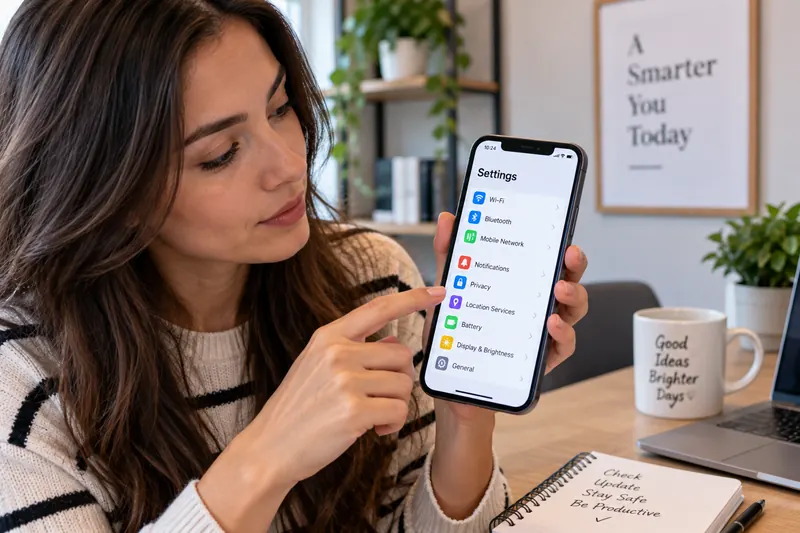
Most phones work reasonably well out of the box, but default settings are designed for a broad audience. A ten-minute review can make your device quieter, more private, easier to recover, and less likely to surprise you with background data or battery use.
Menu names differ between iPhone, Android versions, and manufacturers, so use your Settings search if an option is not in the exact location described below.
1. Software updates
Check that the operating system and security updates are current. Updates frequently include security fixes, reliability improvements, and compatibility changes.
Automatic updates are convenient, but it is still useful to open the update screen occasionally and make sure a pending update is not waiting for approval or storage space.
2. Screen lock and biometrics
Use a strong passcode or PIN and enable fingerprint or face authentication if you are comfortable with it. Avoid simple patterns or obvious dates.
Also review how quickly the phone locks after inactivity and what information can be viewed from the lock screen.
3. Location permissions
Many apps request location access even when they do not need it all the time. Review which apps can use precise location and whether access is allowed always, while using the app, or never.
Keep continuous location access for apps that genuinely require it, such as navigation or safety tools you actively use.
4. Camera and microphone permissions
Check which apps can access the camera and microphone. Remove permission from apps that have no clear reason to use them.
Modern phones display an indicator when these sensors are active, but permission reviews help reduce unnecessary access in the first place.
5. Notification permissions
Too many notifications can bury the important ones. Disable promotional alerts and low-value notifications while keeping security, messages, banking, calendar, and other useful alerts.
Many systems also let you change whether an app can make sounds, appear on the lock screen, or show badges.
6. Cloud backup
Confirm that photos, contacts, messages, and device settings are backed up in the way you expect. A backup that has been paused because storage is full is easy to overlook.
Know what is included and how you would restore it before you actually need to replace a lost or damaged phone.
7. Find-my-device features
Apple and Google both provide device-location and recovery features. Make sure the service you rely on is enabled and connected to the correct account.
Recovery features are most useful when configured before the phone is lost. Review the remote lock or erase options so you know how they work.
8. Background data and app refresh
Apps can update content in the background. This is convenient, but it can use data and battery. Restrict background activity for apps that do not need immediate updates.
Do not disable background operation for apps that provide time-sensitive safety, messaging, navigation, or authentication functions unless you understand the effect.
9. Wi-Fi and Bluetooth auto-connect behavior
Review saved Wi-Fi networks and remove old networks you no longer use. Be cautious about automatically joining unknown open networks.
For Bluetooth, remove devices you no longer own and verify which accessories can connect automatically.
10. Emergency and medical information
Many phones let you store emergency contacts and optional medical information that can be accessed from the lock screen. Configure only what you are comfortable sharing.
Also review emergency SOS shortcuts so you know how to trigger them and avoid accidental calls.
Make This a Quarterly Habit
Phone settings change as apps are installed, permissions are granted, and operating systems add new features. A short review every few months is more effective than trying to perfect every option once and forgetting about it.
Frequently Asked Questions
Should I turn off all app permissions?
No. Permissions enable legitimate features. The goal is to allow access that is necessary and remove access that no longer makes sense.
Do automatic updates use mobile data?
Behavior varies by device and settings. Many phones prefer Wi-Fi for large updates, but you should check your update and data-use options if your mobile plan has limits.
Is cloud backup enough on its own?
Cloud backup is convenient, but important files may benefit from an additional independent backup depending on how valuable they are to you.